
Private AI that runs on the PCs you already own
Emberite AI turns Windows PCs with a graphics card into your team's own AI service: chat, image and video generation, coding assistants and agents. Prompts, files and results stay inside your home or business network.
For Windows 10 and 11 (64-bit). A 16 MB setup that installs everything else it needs.
Why keep AI in-house
Cloud AI is convenient until it touches confidential work, sits in a business-critical process, or changes underneath you. Emberite AI gives you the same kinds of tools on hardware you control.
| Topic | Cloud AI services | Emberite AI |
|---|---|---|
| Your data | Prompts, documents, code and images are sent to another company's servers. | Everything stays on PCs inside your home or business network. |
| Cost | Billed per token or per image. Prices and limits can rise without notice. | You pay for hardware once. No per-token bills and no surprise price increases. |
| Model changes | Models are upgraded or retired on the provider's schedule, sometimes overnight. | You decide when a model changes, after testing it on your own work. |
| Getting started | Accounts, API keys and integrations to wire up for each tool. | One setup installs everything, with ready-to-use image and video workflows. |
Everything your team needs, in one browser tab
People open Emberite AI from any browser on your network, on a PC, a Mac or a phone. Each person signs in and sees only their own chats and results.
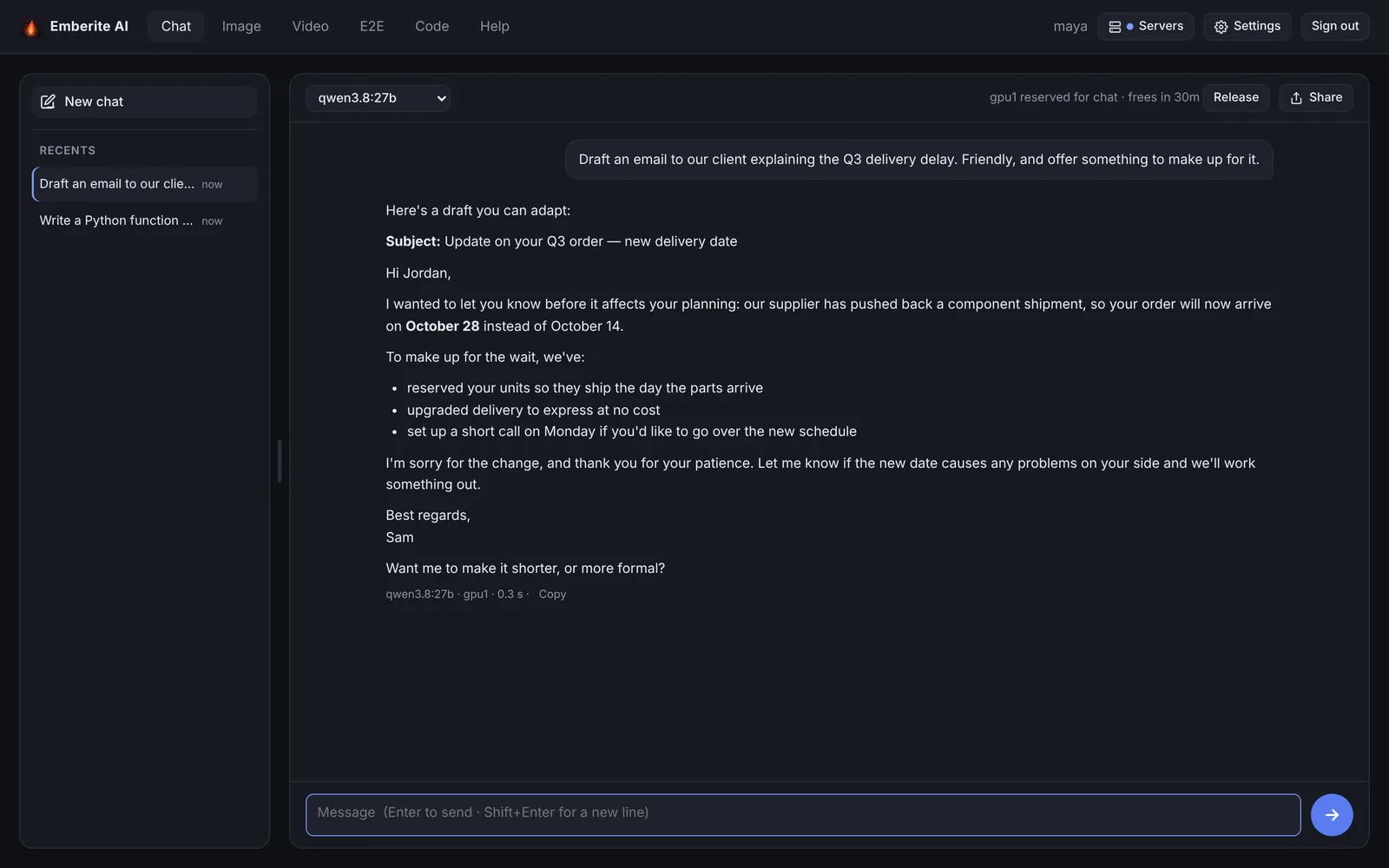
Chat
Ask questions, draft emails and reports, summarize and rewrite, with open models such as Qwen. Pick a model for each conversation, share a conversation with a colleague by link, and let the chat search the web when you add a search key.
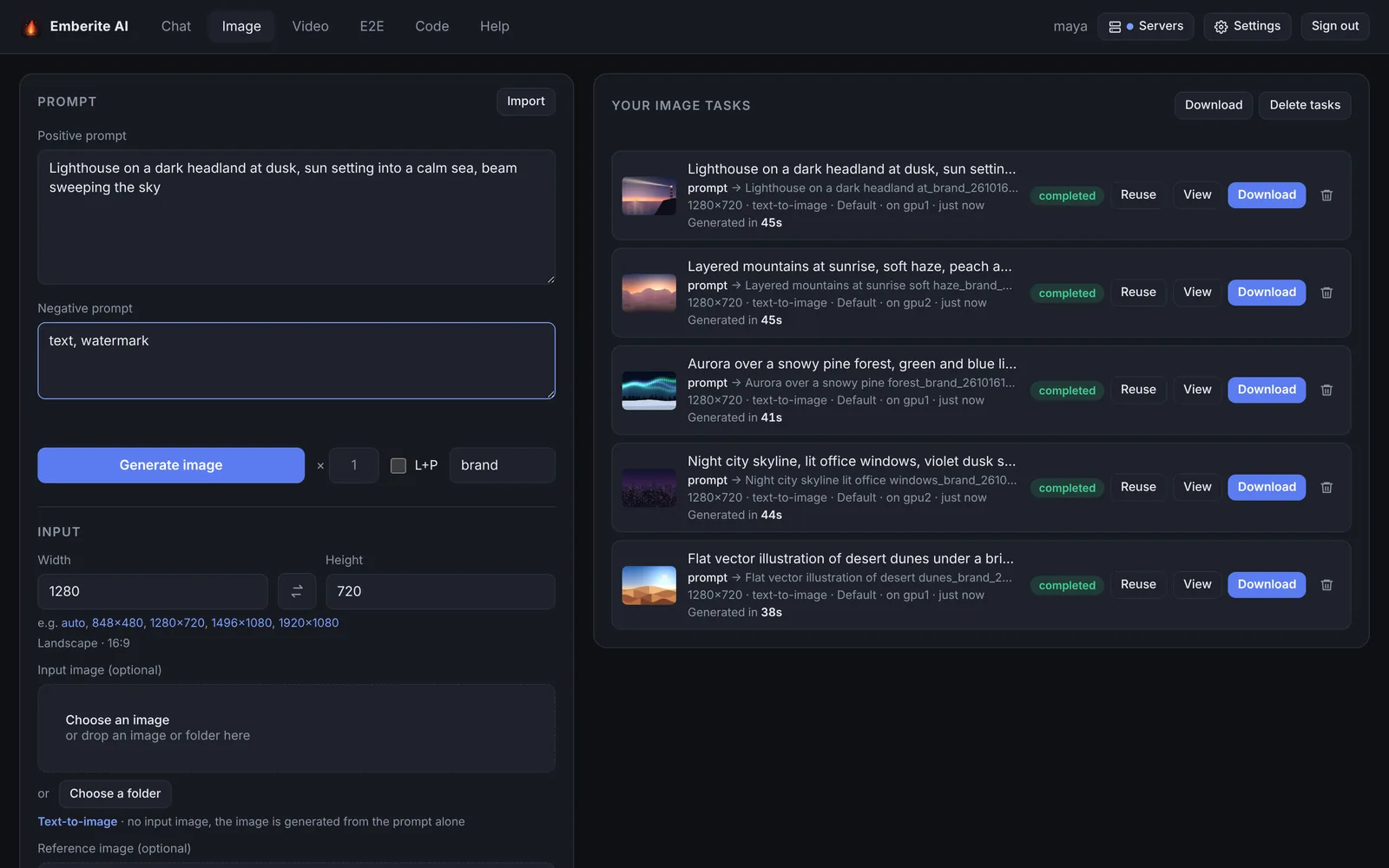
Image generation and editing
Describe an image, or edit one with an input image and a reference image. Queue many prompts at once, run a whole folder of images, and download the results together. Each result keeps its prompt so you can reuse it.
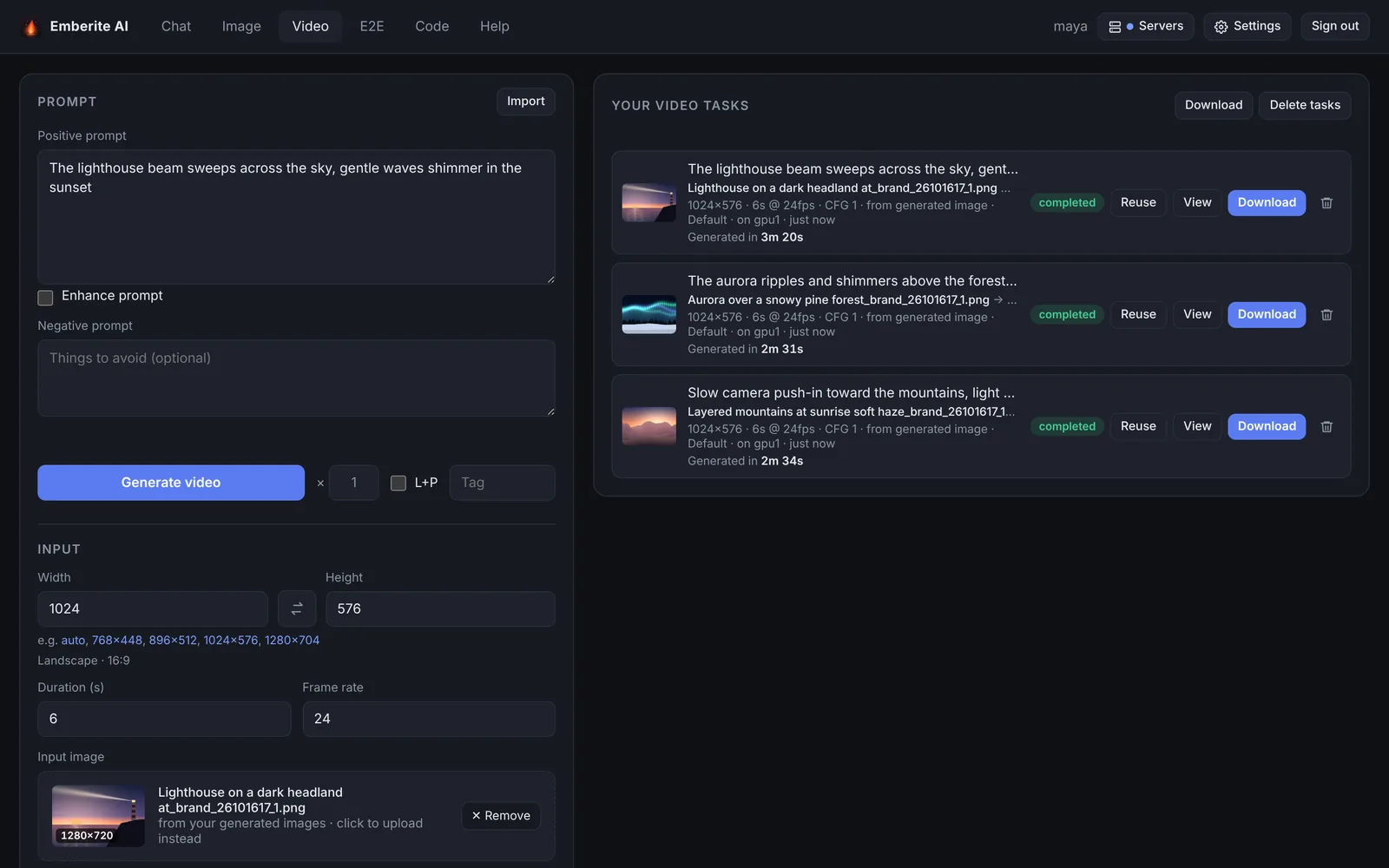
Video generation
Turn an image, uploaded or generated, into a video clip. Set the size, length and frame rate, continue a shot from the last frame of a previous video, or go from prompt to image to video in one run.
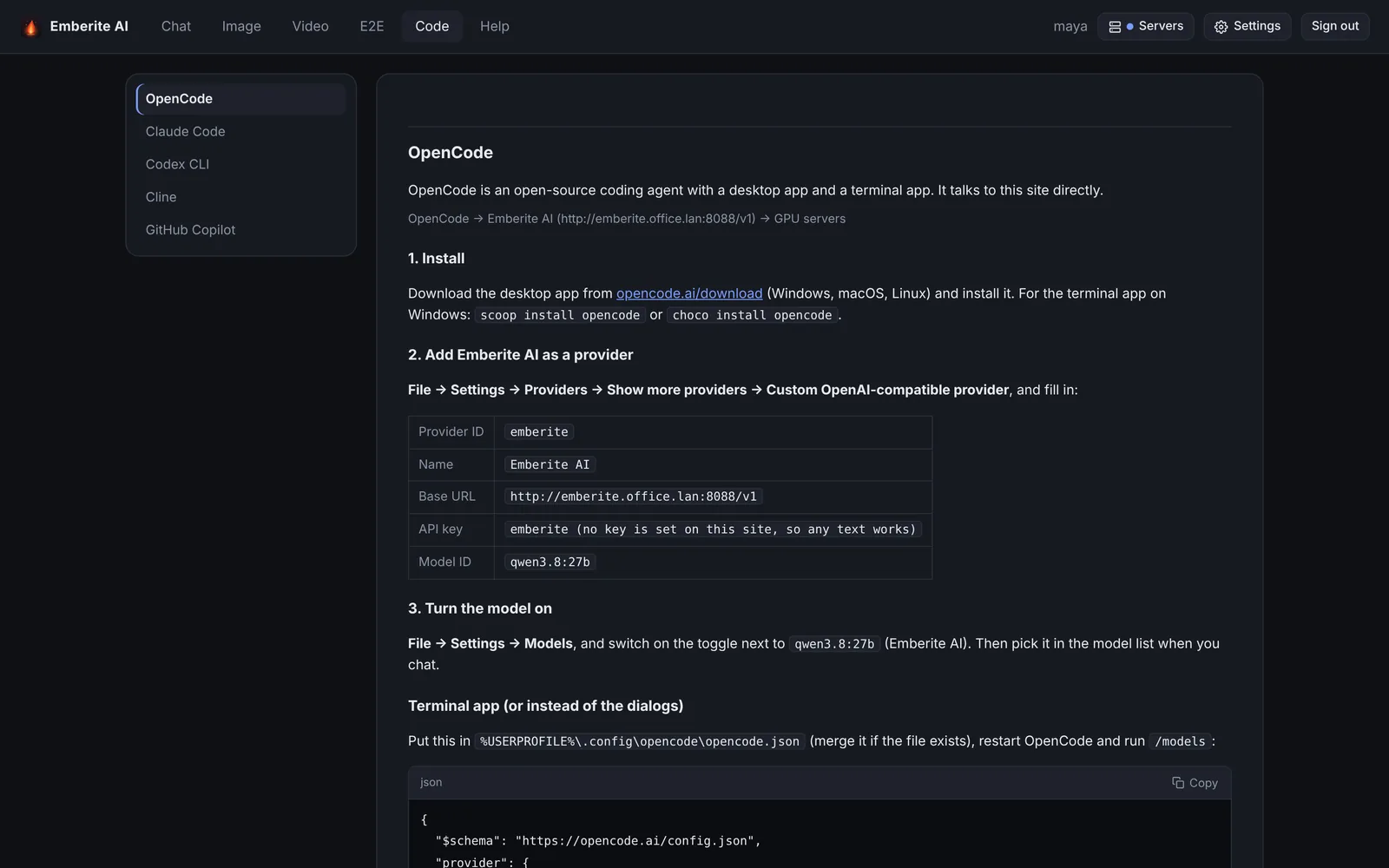
Coding assistants and agents
Emberite AI serves an OpenAI- and Anthropic-compatible API on your network. The Code tab walks through connecting OpenCode, Claude Code, Codex CLI, Cline and GitHub Copilot, and the Agent tab does the same for Hermes Agent and OpenHands. Any other tool that speaks these APIs can use it too.
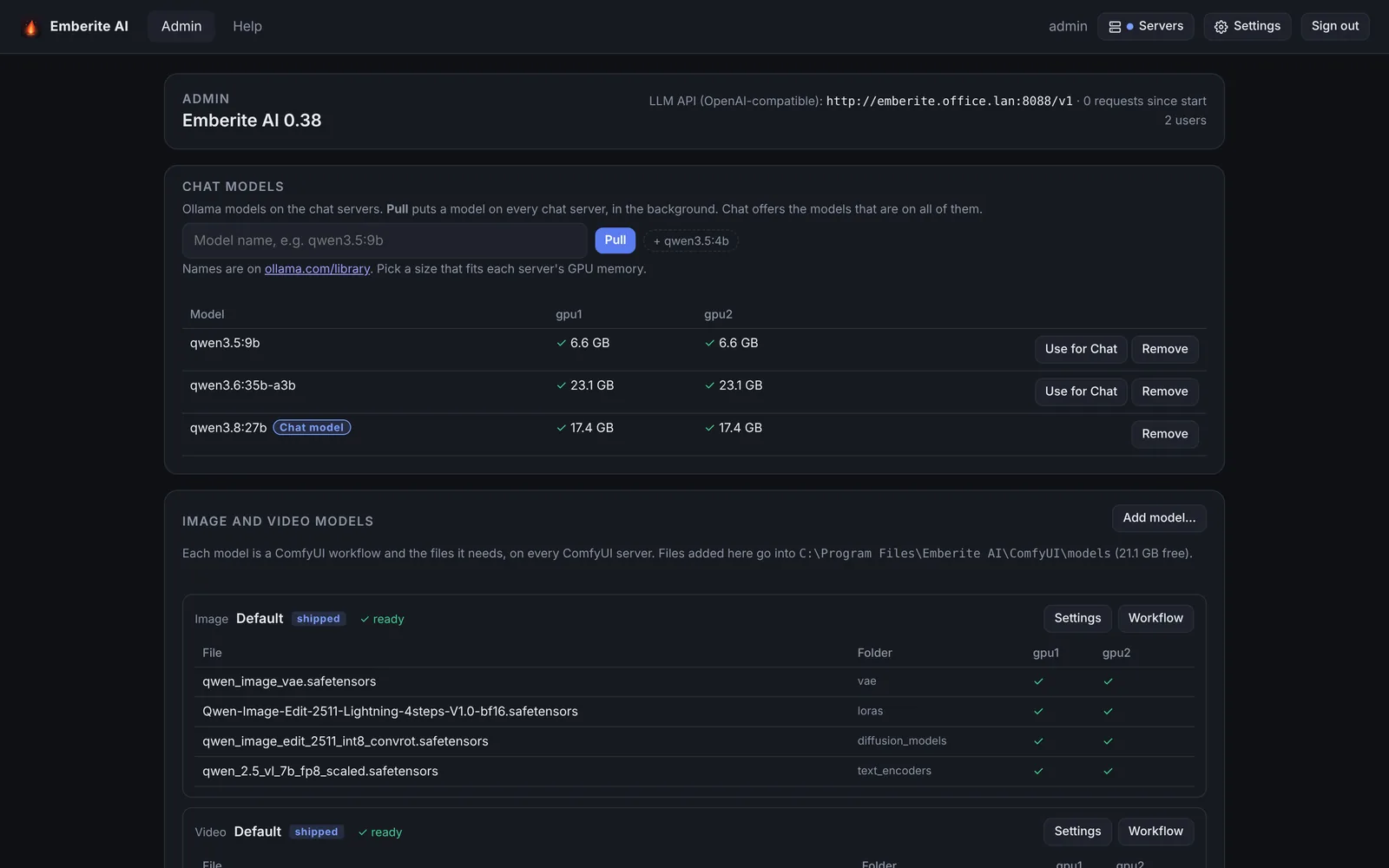
Admin
Put a chat model on every server with one click. Add image and video models from a ComfyUI workflow, see which files each server has, and fine-tune samplers and LoRAs without editing files.
One graphics card, two speeds
Chat and coding need answers in seconds. Image, video and agent work can take minutes and nobody has to watch it.
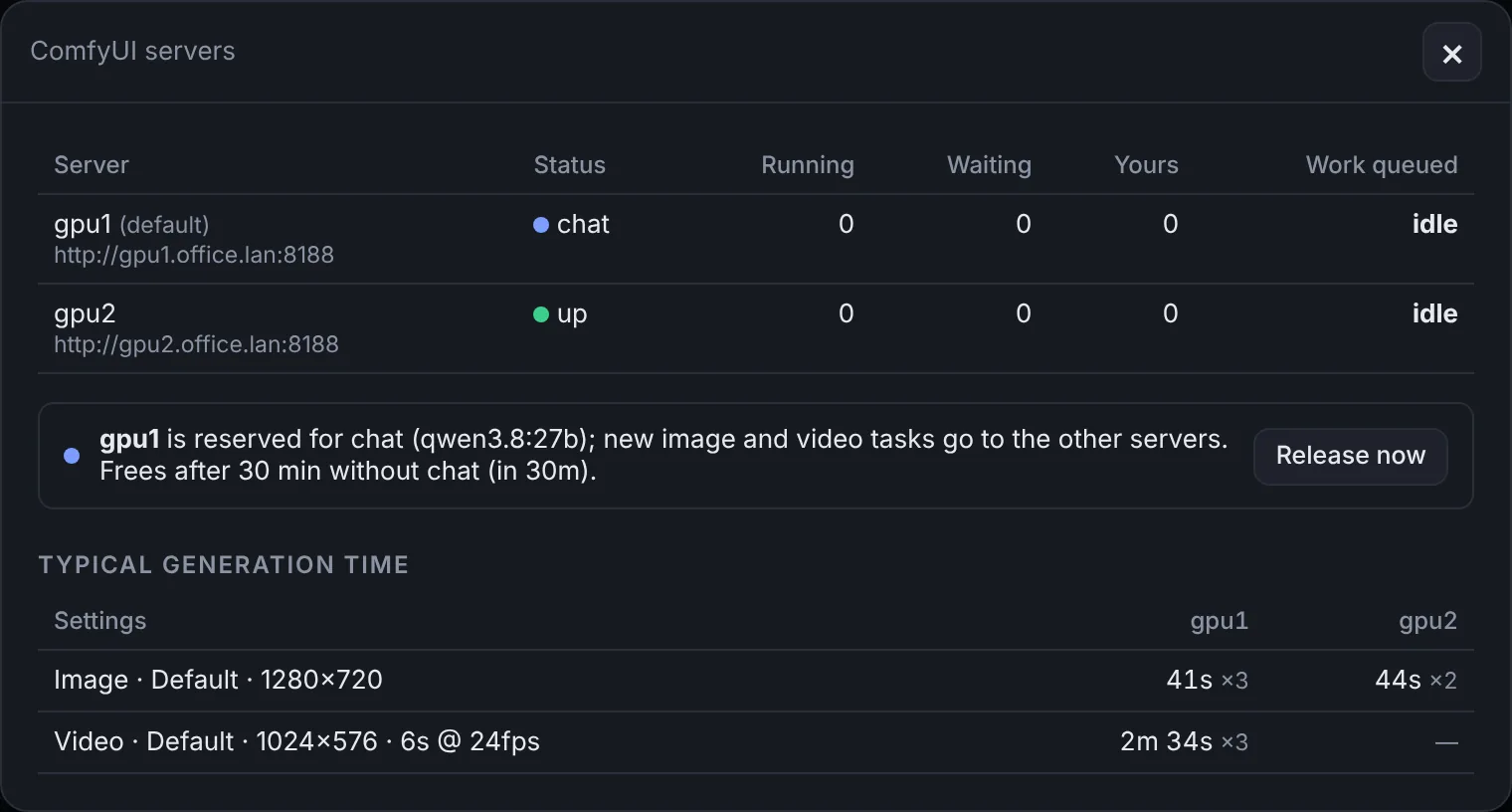
Emberite AI holds a GPU for chat while people are using it, and gives it back to queued image and video work when the conversation goes quiet. Background work isn't lost: it waits its turn, or moves to another PC that's free.
Add a PC when you need more
Start with one PC. When more people, more coding or more image, video and agent work arrive, install Emberite AI on another PC and it joins the pool.
- Each image or video goes to the PC expected to finish it soonest, based on the work already queued and how fast each PC has been.
- Chat uses the PCs you prefer and moves to the next one when a PC is busy or offline.
- A PC held for chat is skipped for new image and video work, so conversations stay fast.
- App settings, chat models and image and video workflows are managed for the whole cluster from one admin page, and upgrades roll out from there.
Use the PCs you have, or a gaming PC
Any Windows PC with an NVIDIA, AMD or Intel graphics card works, including mini PCs with large shared-memory integrated graphics. The setup looks at the graphics card and picks the models that fit.
| Graphics memory | What it runs |
|---|---|
| Under 8 GB | Chat and coding with a small model (qwen3.5:4b). Good for trying Emberite AI out. |
| 8 to 23 GB | Chat and coding with qwen3.6:35b-a3b and qwen3.5:9b, plus image and video generation. |
| 24 GB or more | Chat and coding with qwen3.8:27b, plus image and video generation. |
Plan for about 100 GB of free disk space for the models. You can switch to other open models later from the admin page.
Ready to use after one install
No Python, no command line, no workflow wiring. The setup installs and configures everything, including ready-made image and video workflows.
Run the setup
Choose a folder and the web address port. It installs Emberite AI and starts it with Windows.
It reads your graphics card
It picks the chat models that fit, and installs Ollama and ComfyUI to run them.
Models download in the background
The app shows the progress, and chat works as soon as its first model is ready.
Open it in a browser
On this PC or any device on your network. Sign in as admin and add your team.
Connect your coding tools and agents
Point your coding tools and agents at your Emberite AI server: it speaks the OpenAI and Anthropic APIs, so Claude Code, Codex CLI and the rest connect directly, with nothing else to install. Requests are served by the same chat servers as the Chat tab, moving to the next PC if one is busy or offline, and an optional API key keeps the endpoint to your own people.
Works with OpenCode, Claude Code, Codex CLI, Cline, GitHub Copilot, Hermes Agent, OpenHands and your own scripts.
# any OpenAI-compatible client works
curl http://ai-server:8088/v1/chat/completions \
  -H "Content-Type: application/json" \
  -d '{
    "model": "default",
    "messages": [
      {"role": "user",
       "content": "Review this function for bugs"}
    ]
  }'
Questions people ask
How is Emberite AI different from Ollama, LM Studio, AnythingLLM or Unsloth Studio?
They're excellent tools for running open models on one computer, and Emberite AI is built on one of them. The difference is who it's for: Emberite AI is made for a team sharing the graphics cards it owns.
- Everyone uses it from their own device. Emberite AI is a website on your network: people open it in a browser on any PC, Mac or phone, sign in, and see only their own chats and results. Nobody needs a graphics card or anything installed. With a private network such as Tailscale, they can reach it securely from home or on the road too.
- Several PCs work as one. The other tools serve from the machine they're installed on. Emberite AI spreads chat, image and video work across every PC you add, moves on to the next PC when one is busy or switched off, and keeps the same models on all of them.
- Chat, images and video in one place. The same PCs that answer questions also make and edit images and videos, and Emberite AI switches each graphics card between the two as people need them.
- It works alongside them. Emberite AI serves the OpenAI and Anthropic APIs, so tools you already like can use your PCs. For example, keep AnythingLLM for its document knowledge base and point it at Emberite AI.
- Built on Ollama. Chat runs on Ollama, which the setup installs and configures for you, so you get the same open models (Qwen, Gemma, gpt-oss and others) and the same speed.
How is Emberite AI different from ComfyUI?
ComfyUI is the engine Emberite AI uses for images and video, and a superb one. Emberite AI puts a simple, shared front end on it.
- Ready to use, no nodes. In ComfyUI you build or download a workflow, find the right model files and wire the nodes together. Emberite AI comes with tuned workflows for text-to-image, image editing and image-to-video (Qwen Image Edit 2511 and LTX Video 2.3), downloads their files for you, and gives people a form: write a prompt, add an image, click Generate.
- Made for many people. Each person has their own account, tasks and results. In ComfyUI everyone who opens it shares one queue and one history.
- Manages the work. Stop, retry or move a task to another PC, run a batch of prompts or a folder of images, and see an estimate of when each task will finish, learned from how long past tasks took. Tasks go to whichever PC will finish them soonest.
- Room to grow. The setup installs ComfyUI for you, and admins can add their own ComfyUI workflows as new image or video models when newer ones come out.
Does anything leave our network?
Chats, prompts, images, videos and files stay on your PCs. Emberite AI reaches the internet only to download models, and, if the admin adds a Brave or Tavily search key, when the chat searches the web and reads the pages it finds. Without a key, the chat never goes online.
Can we use Claude Code, Codex or other coding agents with it?
Yes. Claude Code, Codex CLI, OpenCode, Cline, GitHub Copilot, Hermes Agent and OpenHands all connect directly, and the app's Code and Agent tabs give each person the setup steps with your server's details filled in. The work is done by the open model on your own PCs, so it's best at focused tasks; the User's Guide explains what to expect.
Download Emberite AI
Version 0.40 for Windows 10 and 11 (64-bit).
Download the setup (16 MB)SHA-2560f7c923159977cdd1d838f6c86451e0303e201e06fcb0c100abbfc008d498250
What the setup does
- Installs Emberite AI and starts it with Windows, at
http://localhost:8088by default. - Downloads Ollama for chat (about 1.5 GB) and, with 8 GB of graphics memory or more, ComfyUI for images and video (about 2 GB). Both are fixed versions checked against their published checksums.
- Downloads the chat, image and video models in the background after it finishes.
- Opens the port in the Windows firewall for private and domain networks only.
Upgrading? Run the new setup over the old one. Your settings, accounts, files and models are kept.
Talk to us
Questions about running Emberite AI in your business, planning hardware for your team, or setting up a cluster? Send us an email.
emberite.ai@gmail.com